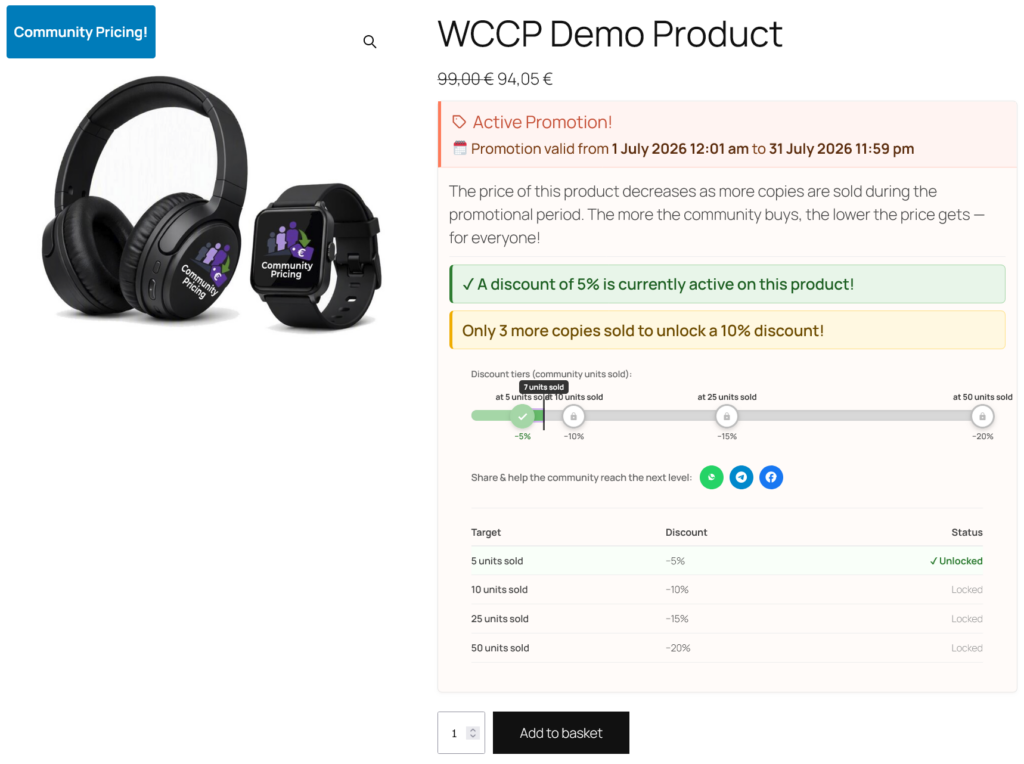
To maximize conversions, clear community progress display is essential.
6.1 Shortcodes
Primary frontend shortcodes (not an exhaustive map — also see legal/partner shortcodes in Chapters 2 and 5, plus [wccp_promo_result] and related helpers where documented):
[wccp_progress_bar]: Simple progress bar (community units sold).[wccp_promotion_timeline]: Full timeline (v2.6.7+) with tier intro, colored bar, ✓/lock dots, «at X units sold» labels,−discount prefix, pointer and optional Target table.[wccp_active_promotions]: Grid of products currently on promotion.
6.2 Dynamic OpenGraph (Social Preview)
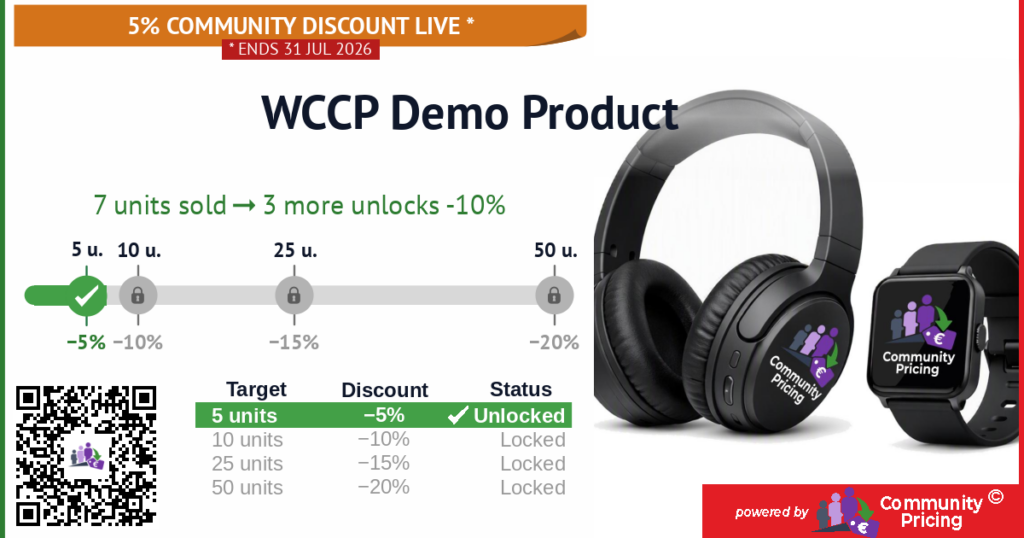
Community Pricing PRO automatically generates an OpenGraph preview image (1200×630 px) and social meta tags for every product on promotion. When you share the link on WhatsApp, Facebook, LinkedIn, or X, the preview shows in real time:
- Community badge and product title
- Subtitle with units sold and active discount
- Progress bar with tiers, dots, and discount percentages
- Summary table (up to 5 tiers)
- Product photo and «powered by Community Pricing» footer
- QR code to the product page, with a customizable center logo
The image updates when sales change (s=) or promo configuration changes — tiers, dates, title, featured image (v= dynamic fingerprint). Technical preview: /?wccp_generate_og_image=PRODUCT_ID&s=SALES_COUNT&v=HASH (copy the URL from the product page og:image meta tag).
QR logo (v2.6.25): replace assets/media/og-qr-logo.png in the plugin (admin upload planned in a future release).
6.2.1 Configuration and Customization
The social sharing preview card can be customized on a per-product basis directly inside the WooCommerce product edit screen.
- Navigate to the Community Pricing product tab.
- Locate the Social Share Description field on the product Community tab (full tab map: Chapter 3).
- Enter your custom promotional message. Dynamic placeholders are replaced when this text is used as the Open Graph
og:descriptionand as the pre-filled message on product social share buttons (e.g. WhatsApp). It is not drawn onto the generated OG image PNG — the PNG still shows badge, title, progress, tiers, product photo, and QR as described above:
{title}: The title of the product.{sold}: The current number of units sold.{missing}: The units remaining to reach the next discount threshold.{next_discount}: The upcoming discount percentage (e.g., 20%).

Technical Notes for Administrators:
- QR Code Logo (v2.6.25): The center logo of the QR code is loaded from the plugin’s asset path (
assets/media/og-qr-logo.png). To customize this logo, replace the image file on your server (direct admin upload will be introduced in a future release).
6.2.2 Why the OG image is “special”
Unlike a static featured image, the OpenGraph card is generated by the plugin from live campaign state: progress bar, tiers, units sold, and a QR code to the product. It refreshes when sales (s=) or promo config (v= fingerprint) change — so shares stay honest relative to the current community progress.
This is a PRO storefront feature (not available in FREE). Preview/debug: open the product’s og:image URL, or use the generate endpoint documented in the developer notes.