
A PRO license is required to activate the automatic refund engine and receive plugin updates.
4.1 Key Activation
Enter the license code in the dedicated field and click Save Key. Once active, the system will perform periodic checks (heartbeats) to ensure the validity of remote services.
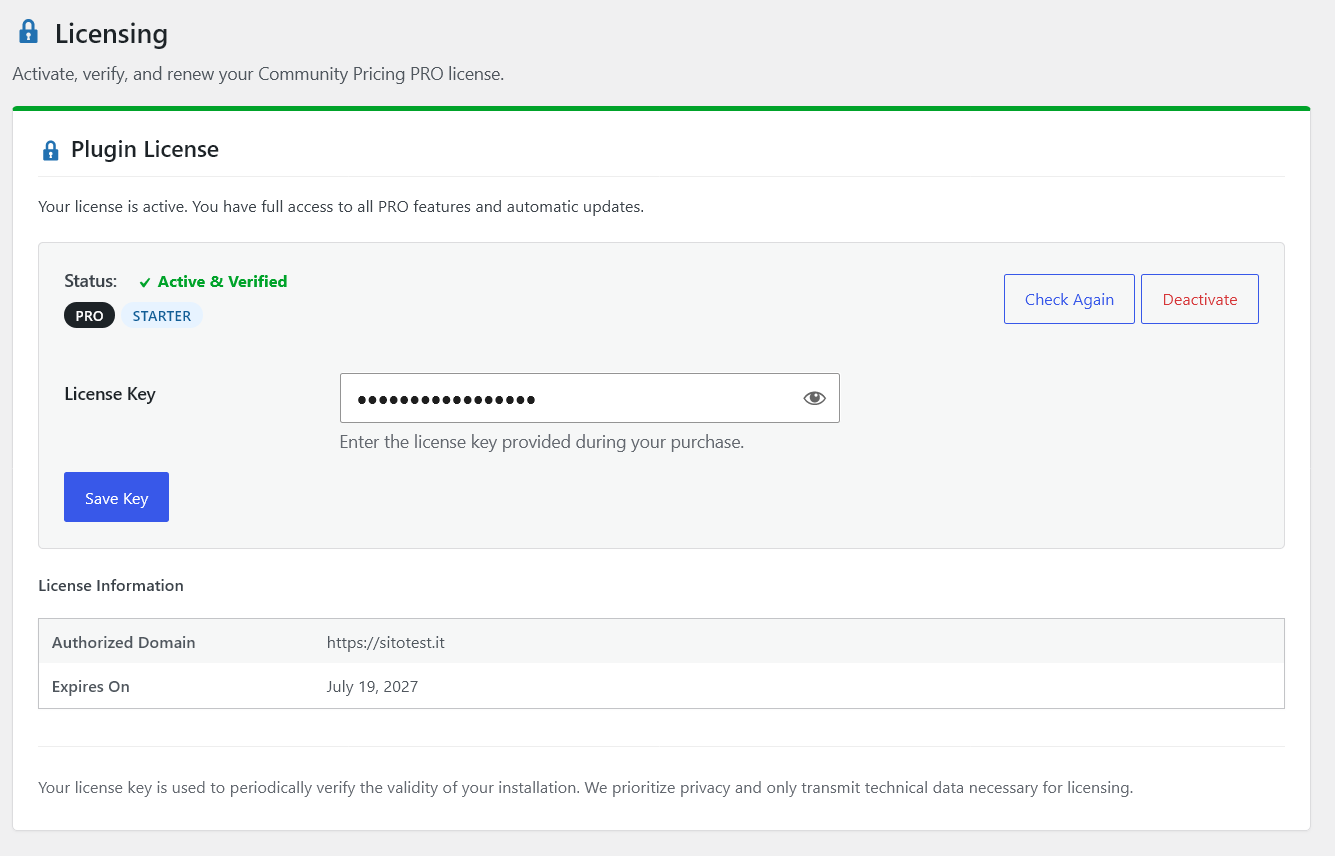
4.1 - License activation screen with Active status4.2 Downloading Updates
With an active PRO license, updates are delivered through the licensing hub on communitypricingpro.com (official PRO channel, not WordPress.org).
- License check: the plugin periodically validates status with the hub (heartbeat and license verification).
- WordPress dashboard: when a new version is available for your license, you are notified under Plugins → Installed Plugins and can update from there (requires hub connectivity).
- Expired license: the plugin keeps working with what you already have installed. You do not receive versions released after your expiry date, and ticket support pauses until you renew. Builds released on or before expiry remain available under your license (subject to the store download policy in My Account). Renew to get newer releases. See §4.5 for renewal.
- Hub unreachable: if communitypricingpro.com is temporarily unavailable, the plugin keeps the last known license state; retry later or contact support.
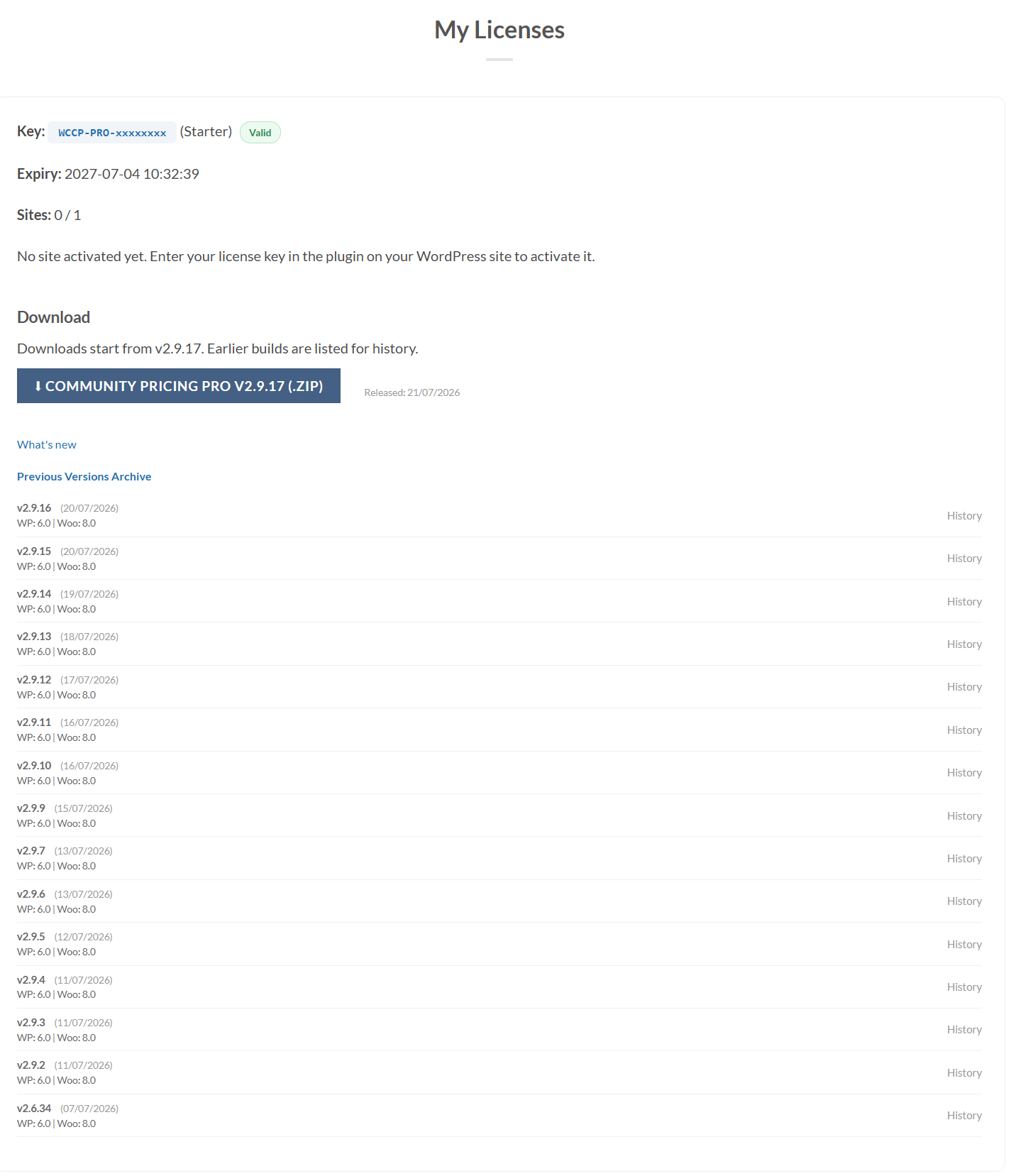
4.2 - Downloads area in My Account with list of available versions4.3 Diagnostic Hub
If issues arise, open Community Pricing → Support & Help and follow the three guided steps: Prepare diagnostic file (downloads one JSON), review/copy the short message to paste into the ticket, then Open Support Portal. Attach the downloaded JSON to your ticket. Nothing is sent automatically.
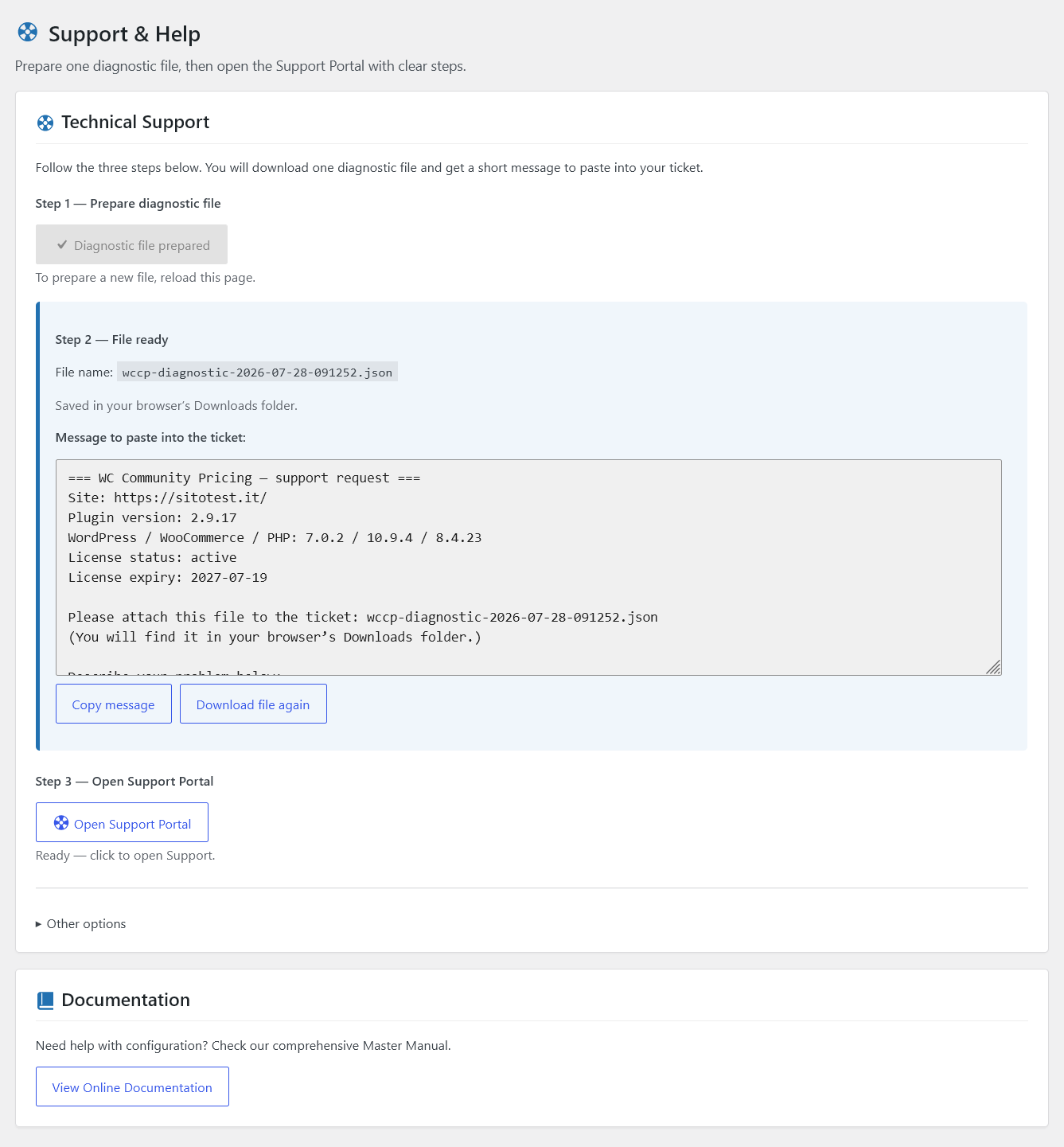
4.3 - Support & Help guided diagnostic (prepare file → paste message → open portal)4.4 License Validity and Operational Continuity
The automatic refund engine and payment-gateway integrations require ongoing maintenance. When the PRO license expires, new commercial automation stops while the shop stays usable:
- Automatic refunds pause. New automatic compensation runs do not start; orders already in the queue are held until the license is renewed (then processing can resume). Where the UI allows, you can still handle outcomes manually.
- Partner / referral — new use stops: new referral clicks, new order attribution, and copying recruitment links. Obligations already in flight continue: confirming commissions on orders already attributed before expiry, and redeeming an already confirmed partner balance. The Partner Area remains readable (balance and history) with a notice. After renewal, new tracking resumes. Details: Chapter 5.
- Display — community pricing on the storefront keeps working with the last installed version.
Ticket support and versions released after expiry require renewal (§4.2 / §4.5).
4.5 Plans, purchase and renewal
WCCP PRO licenses are sold on communitypricingpro.com/pricing/. The catalog uses separate products for a new license and for a renewal; renewing extends the same license key (it does not issue a second key).
Prices, coupons and seasonal offers are not documented here — they change. Always use the Pricing page and checkout for commercial terms.
Tiers (site slots)
Plans differ by how many production sites one key may activate (Starter / Business / Agency). Exact slot counts are shown on Pricing and on your license in My Account → My Licenses.
How renewal works (procedure)
Primary path: My Account → My Licenses on communitypricingpro.com. The in-plugin Licensing banner is strongest when the license is blocked/expired; during an active renewal window it may not always appear.
- Log in with the account that owns the license. Guest checkout cannot renew a license.
- Open My Account → My Licenses on communitypricingpro.com, or the renewal banner under WooCommerce → Community Pricing → Licensing on the store.
- Use the tier-aware renewal link (it carries your license key into checkout), or open the matching Renewal product for your plan.
- If you have more than one renewable key on that plan, select which key to renew in the cart. With a single renewable key, the hub matches it automatically.
- Complete checkout. The hub validates the key and extends the same license (it does not issue a second key). Only one renewal line is allowed per checkout.
You may renew early while the license is still active, as long as no more than about 12 months remain until expiry. Discount coupons for renewal apply only in the configured renewal window before expiry (default 30 days); outside that window renewal is at full list price and still requires a selected license key.
After expiry, renew from My Licenses / Pricing using the Renewal product — do not invent coupon codes from old docs.
If the hub is temporarily unreachable, the plugin keeps the last known license state; retry later or contact Support.
How upgrade works (procedure)
Upgrade moves an active license to a higher plan on the same key. Site slots increase; the expiry date does not change. If the license is expired, renew first, then upgrade.
- Log in to the account that owns the license (guest checkout is not available for upgrades).
- Open My Account → My Licenses and choose Upgrade to Business and/or Upgrade to Agency, or open the matching Upgrade product from Pricing.
- Paths and list prices (excl. VAT): Starter→Business 100 €; Business→Agency 200 €; Starter→Agency 300 € (same total as two steps).
- If you have more than one matching key, select which key to upgrade in the cart. Only one renewal or upgrade line is allowed per checkout.
- Complete checkout. The hub raises tier/sites on that key — it does not create a second license.
Downgrade is not available as self-service; contact Support or renew later on a lower plan if needed.
Support included with an active PRO license
- Asynchronous support tickets (Support Portal / customer area)
- This technical manual and FAQ
- Assistance for plugin defects within stated requirements, or mismatch vs documentation
Not included in the standard license: campaign consulting, custom setup, live training, or custom development.
4.6 License Transfer (Domain Change)
If you wish to move your license to a different domain (for example, from a testing/development site to a production site):
- Deactivate the license on the old site by going to WooCommerce → Community Pricing → Licensing and clicking Deactivate.
- Alternatively, if you no longer have access to the old site, log in to your account on communitypricingpro.com, navigate to the My Licenses tab, and click Deactivate next to the old domain.
- Install the plugin on the new site, enter the same license key, and click Save Key.
Staging / development sites and license slots
A site uses a production slot unless the hub marks it as exempt (“staging — no slot” in My Licenses).
What works automatically (no ticket)
Use a host whose first label is exactly staging or dev, for example:
staging.yourdomain.comdev.yourdomain.com
Then activate the license on that site as usual. Exemption applies when:
- a production site for that same base domain is already on the license, or
- you have no production site yet (dev-first), up to 2 such
staging/devactivations.
Check My Account → My Licenses: exempt hosts show the badge staging — no slot.
What does not work automatically
localhost, *.local, *.test, ngrok, test.yourdomain.com, qa.yourdomain.com, and similar consume a slot like production (unless the host is already on the vendor allowlist).
What you must do if you need an exception
There is no self-service form. Open a ticket on the Support Portal (PRO, active license) and include:
- your license key (or My Licenses screenshot),
- the exact hostname to exempt (e.g.
qa.myshop.com), - why it is staging/QA (short note).
We add approved hosts to the hub allowlist manually. Until that is done, activating on that host may hit your site limit.
Limits on whitelist requests
Allowlist exceptions are exceptional, not a second site plan:
- We only consider hosts that are clearly staging/QA for a domain already tied to your license (or a documented pre-production setup).
- Not accepted as routine: unlimited
localhost/*.local/ tunnels, or extra production-like hosts to bypass plan limits. - Guideline: up to 1 custom allowlisted host per licensed production domain (beyond the automatic
staging.*/dev.*rules), unless Support approves a temporary exception in writing. - Requests may be refused or limited in time if they look like an attempt to expand production slots.
Prefer renaming the site to staging.yourdomain.com / dev.yourdomain.com so you stay on the automatic path and do not need a ticket.
4.7 Renewal window & blocked campaigns (2.9.16+)
When the license is in a renewal window or blocks campaign features, the product Community tab can show an inline renew CTA (not only a generic alert). Cached renewal URLs are trusted only in the proper lifecycle state.
For uninstall / data retention options: WooCommerce → Community Pricing → Tools & Sync → Data & uninstall (default Keep all data on uninstall — Chapter 8 / FAQ 9.18).