
Quick answers to common merchant and customer questions.
9.1 Why wasn’t the refund issued?
Check that the order status is among the “Eligible” ones and that the promotion end date has passed. Also check the Global Log for specific gateway error messages. Safety Guard and Manual Dispatch: Chapter 2. QA / gateway readiness: Chapter 7.
9.2 How can I reset a promotion?
You can manually unlock the sales counter on the product page, but we recommend doing so only after removing the associated test orders.

9.3 A Store Credit coupon was invalidated after a refund. Is this expected?
Yes. As of version 2.5.0, the Coupon Safety Engine invalidates Store Credit coupons tied to the order when a full refund runs, or when a partial refund returns all remaining tracked promo quantities for that order (every promo line qty refunded). A partial refund that leaves some promo qty on the order does not invalidate the coupon. When invalidated, the coupon goes from publish to draft and an order note is recorded — so credit cannot be spent on already-returned promo units.
9.4 I received an email when the campaign ended. What is it?
This is the Guard Period Email (email id wccp_guard_period_started, v2.5.0+). It is sent when the campaign ends and the Refund Safety Guard window starts — not when those days elapse. Default Guard is 14 days (configurable in Settings). The email tells the customer the promotion has ended and, when Guard > 0, points to the expected compensation timing. Delivery uses Action Scheduler with idempotency (no duplicates). Automatic refunds/coupons themselves run after the Guard delay (or via Manual Dispatch). See Chapter 2 §2.5.
9.5 How can I see a campaign’s rewards and coupons directly from the customer account?
As of version 2.5.0, on the My Account → View Order page, customers will find a new Rewards Grid section showing the campaign outcome, received coupons (with status: Valid / Used / Expired / Cancelled), and any related refunds.
9.6 What happens if the campaign reaches the maximum target before the expiry date?
If Early Closure is enabled for the product (or inherited from the global default — which is off unless you set it to yes), the Early Closure Engine (v2.3) closes the campaign when sales reach the last configured tier’s maximum. The end date is updated instantly, scheduled events are cancelled, and the compensation flow (automatic refunds or the Manual Dispatch queue) starts. If Early Closure is disabled, the campaign waits for the scheduled end date even after the max tier is reached. See Chapter 2.
9.7 When should I use “Manual Dispatch” mode?
Use it if you manage a dropshipping model. In this case, the right of withdrawal runs from the physical delivery of goods, not from payment. Manual Dispatch mode freezes refunds until you manually release them from the Promotion Hub → Manual Dispatch (Start Compensations), after verifying that customers have received their items.
9.8 The “Dispatch Mode” column in the product list shows “⏳ Xd pending”. What does it mean?
It means the campaign has been waiting for manual dispatch for X days. If the value appears in red, the tolerance window has expired and requires immediate action. Open Promotion Hub → Manual Dispatch and click Start Compensations to release the refunds (confirmation required).
9.9 How does the promotion status column in the orders list work?
As of version 2.4.0, the WooCommerce orders list includes a Promotion Status column with dynamic colored badges indicating the promotion progress for each order (e.g. In Progress, Completed, Dispatch Pending, Refunded).
9.10 Can I see all my campaign participations in one place?
Yes. As of version 2.4.0, the customer area includes a My Participations section (endpoint /my-account/premi-community/) with a unified grid showing received coupons, refunds, and the status of each campaign you participated in. For the meaning of each status (including unpaid orders), see §9.11.
📄 Legal demo & Partner Guide pages (v2.6.3+)
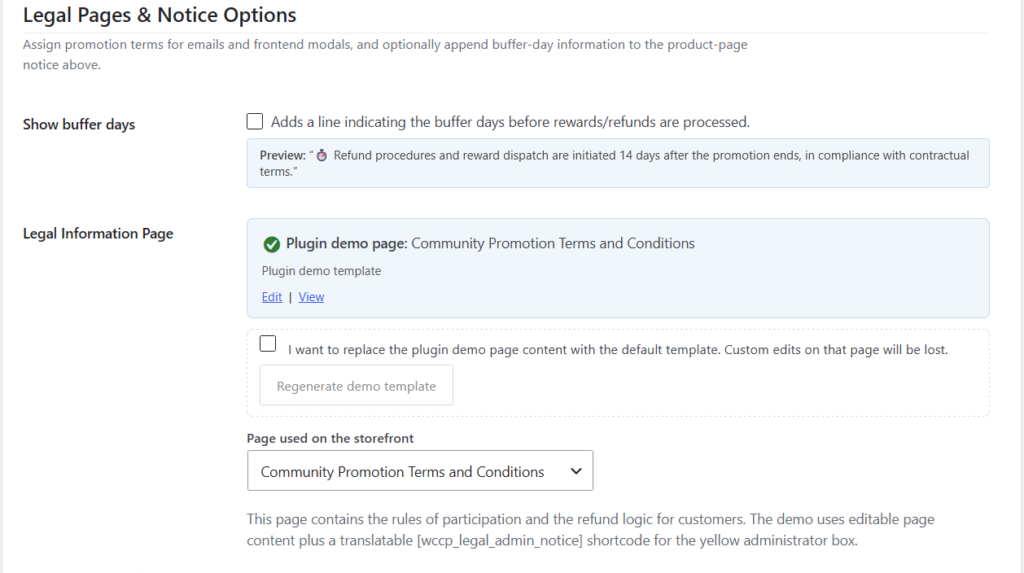
The plugin separates the plugin-created demo page (regeneratable) from the page used on the storefront (dropdown). Operational guides: Global Rules §2.10.2 (Legal Information Page) and Referral §5.4 (Partner Guide — same demo/storefront model).
9.11 What do the statuses in “My Participations” (My Rewards) mean?
The My Account → My Rewards section (/my-account/premi-community/) shows, for each community-promotion order, two separate pieces of information:
- Campaign status — In Progress (promotion still open) or Ended (end date passed or early closure).
- Reward — the economic outcome for that participant.
| Reward shown | Meaning |
|---|---|
| ⏳ Waiting for end date | Campaign still open. The reward is calculated only after closure (+ optional Refund Safety Guard, default 14 days). |
| 💰 Community price applied | Unpaid order: the line total already reflects the community price. No post-campaign Store Credit — the benefit is paying less. The order does not count toward thresholds until paid. |
| ⚙️ Pending compensation | Already paid order: campaign closed. From v2.8.0 shows reward type (Store Credit or card refund), an estimated date (from Refund Safety Guard or the Action Scheduler job), plus a note that the date may shift. Manual Dispatch has no automatic date. You will be emailed when issued. |
| 🎟️ Store Credit | Coupon issued: code, amount, and status (valid / used / expired). |
| 💸 Refunded to Card | Partial refund issued to the original payment method. |
| ❌ Community target not reached | The community did not reach the minimum threshold. The callout shows how many copies were missing and invites the customer to share the product link in future campaigns. (v2.8.0) |
| ❌ Already purchased at best price | The order was already at the maximum tier price: a refund would be zero. No negative economic impact. (v2.8.0) |
| ❌ Campaign ended without compensation | The merchant closed the campaign with End Without Compensation (EWC): no automatic Store Credit / gateway refund for that outcome. This is not the same as Early Closure (which still runs compensation). See §9.21. (v2.8.0) |
| ⛔ Order excluded from campaign | The order does not participate in compensation for a specific reason (e.g. unpaid, cancelled, partial refund). The callout shows the exact reason. Excluded orders do not receive the campaign result email. (v2.8.0) |
📅 Estimated reward date (v2.8+)
For already paid orders in ⚙️ Pending compensation, the plugin shows an estimated reward date:
- Priority 1 — Action Scheduler job
wccp_execute_delayed_refunds(refund batch, when already scheduled). - Priority 2 — job
wccp_process_promotion_end(+ Safety Guard days if > 0) when the refund batch is not queued yet. - Fallback — campaign end + Refund Safety Guard days (global setting, Ch. 2).
- Guard = 0, no queued job — within a few hours after closure copy (no sliding “now + 1h” time).
- Manual Dispatch — no automatic date; waiting for manual merchant release.
An italic disclaimer notes the date is indicative and may shift due to payment checks, gateway delays, manual review, or technical retries. The same estimate appears in the customer end-of-campaign email.
⚠️ Special case: unpaid order (e.g. “Pending payment”)
When Update unpaid order prices? is enabled (default yes, see Chapter 2), unpaid orders behave differently:
- During the campaign, when the community reaches a new tier, the order line total drops to the current community price (e.g. from €100 to €80).
- The customer does not receive Store Credit or an automatic refund at campaign end — the benefit is already on the order total; they pay less at checkout.
- In My Rewards, after closure, the row shows Ended + 💰 Community price applied. This is not a bug: the benefit is already on the line total and no post-campaign coupon will be issued.
- To verify: open View order — the promotional product line already reflects the updated price.
9.12 Is community pricing “safe”? What counts toward the threshold?
The mechanism is designed to be transparent and fair — especially for shoppers reading the product page before buying:
- Only paid orders (statuses configured in admin, default: Processing, Completed) increment the community counter and progress bar.
- Pending payment orders never inflate thresholds. Cancelling an unpaid order does not change the counter.
- Already paid order: you keep the price you paid; any extra community discount is returned after campaign end (Store Credit or partial refund).
- Not yet paid: if the community unlocks a lower price, your line total updates automatically — you pay less at checkout, with no post-campaign coupon.
On the storefront (v2.6.26+), dedicated messages appear on the product page, cart, and checkout, toggled under WooCommerce → Settings → Community Pricing → Consumer Trust & Transparency. You can also embed [wccp_consumer_trust] in product descriptions.
If you use On-hold for bank transfers, the order may count before funds are received — explain this to customers if you enable that status.
Typical QA Automator example (Step 3): the Path A (Pending) order stays unpaid to test mid-campaign sync; Path B (Completed) orders receive Store Credit at Step 4.
9.13 Can the Shop Manager use Community Pricing PRO?
Yes, with permissions configured by the Administrator under WooCommerce → Community Pricing → Shop Manager Permissions (v2.6.27+).
Shop Manager defaults: WCCP menu, Promotion Hub (view + manual refund dispatch), per-product promo settings, Settings and Referral read-only, Global Log view/export, WCCP columns on orders.
Administrator only (never delegatable): licensing, QA Automator, Tools & Sync, clear global log, retroactive sync, reset campaign history, legal demo pages, Setup Wizard.
For global rules (order statuses, compensation, consumer trust) see Chapter 2 — Global Rules and Automation.
9.14 Product metabox: what can the Shop Manager do? (v2.6.28+)
On each product’s Community Pricing tab, buttons and saves respect delegated caps:
- Reset History (campaign archive): Administrator only.
- Manual sales counter override: dedicated cap, off by default for Shop Manager.
- Per-product automation rules (Early Closure, Refund Dispatch): dedicated cap, off by default; otherwise read-only.
- History Log: view last events; no delete action in the metabox.
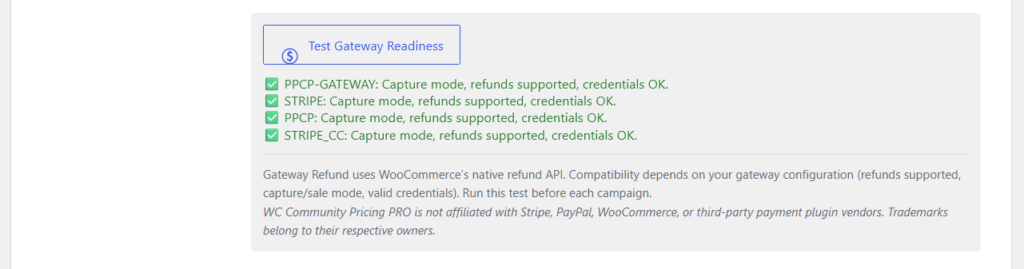
✅ Test Gateway Readiness and gateway compatibility
Community Pricing PRO is not affiliated with, endorsed by, or sponsored by Stripe, PayPal, WooCommerce, or third-party payment plugin vendors. Product and company names are trademarks of their respective owners.
With Gateway Refund, refunds are processed through WooCommerce’s native refund API. Before each campaign, open WooCommerce → Community Pricing → Settings, select Gateway Refund, and click Test Gateway Readiness. The tool checks whether your enabled Stripe and PayPal gateways support automated partial refunds and immediate capture.
Gateway Refund uses WooCommerce’s native refund API. Compatibility depends on your gateway configuration (refunds supported, capture/sale mode, valid credentials). Not compatible with automatic WCCP refunds: bank transfer, cash on delivery, authorize-only gateways without capture.
9.15 The “Generate demo page” button does nothing / is missing. Why?
If a demo already exists for that language, Generate demo page is hidden: you should see the status panel with title and Edit/View links. To replace demo text, use Regenerate demo template (mandatory checkbox + confirm). If you deleted the page from the WordPress Trash, reload settings: Generate appears again.
9.16 I selected a different page in the dropdown. Is the demo overwritten?
No. The Page used on the storefront dropdown only changes which page the frontend links in emails and boxes. The plugin’s original demo page stays unchanged; the plugin shows a notice when your selection differs. Edit or regenerate the demo only from its dedicated section, or manage the alternative page manually in WordPress.
9.17 Can I regenerate a page I customized?
Only if it is the plugin-registered demo page. Check the confirmation checkbox, click Regenerate demo template, and confirm: the default template replaces all content. If you assigned a different WordPress page in the dropdown, regeneration does not touch that page — edit it manually.
9.18 How can I completely uninstall the plugin and delete all its data?
From 2.9.15+, uninstall behaviour is configurable. Open WooCommerce → Community Pricing → Tools & Sync → Data & uninstall (also linked as Uninstall options on the Plugins list) to see the current policy, change it, or run Purge data now (with confirmation).
Default on a standard fresh install: Keep all data on uninstall (keep_all) — already saved on first activate. With that policy, Plugins → Delete removes the plugin files but does not wipe WCCP tables, options, or campaign/partner data.
Other policies you can save in Tools:
- Keep all data on uninstall (
keep_all) — recommended default; database unchanged on delete. - Remove operational data only (keep settings) (
data_only) — removes operational WCCP data on delete (see the status box in Tools for the current list). - Remove everything (
full_purge) — full WCCP footprint on delete.
WordPress procedure: Plugins → Installed Plugins → Deactivate, then Delete. The effect follows the saved policy above — it is not always a full wipe.
If you remove plugin files without using WordPress Delete (e.g. deleting the folder by mistake) and reinstall later, data usually remains in the database. For a controlled wipe while the plugin is still installed, use Purge data now in Tools & Sync.
Related: Chapter 8 §8.4.
9.19 How do I buy or renew a PRO license?
Purchase and renew on Pricing. Use the Renewal product for your tier and complete checkout with your existing license key (link from My Account → My Licenses or the plugin Licensing banner). Commercial prices and coupons are only on Pricing/checkout — not in this manual. Procedure detail: Chapter 4 §4.5. To move to more sites on the same key, see §9.22 (plan upgrade).
9.20 Does the cart change the live product price?
No (Mode A). Quantity in the cart only projects what would unlock (amber timeline / cart hints). The live catalog price moves after eligible community sales. Checkout charges the current live price. See Chapter 1.
9.21 Early Closure vs End Without Compensation — what’s the difference?
Early Closure ends the campaign when the max target is reached and continues the compensation flow for eligible paid shoppers. End Without Compensation is an admin close with no rewards — customers should see an honest outcome message. Do not treat them as synonyms. See Chapter 2 §2.7.1.
9.22 How do I upgrade my PRO license to more sites?
A plan upgrade moves an active license to a higher tier on the same key (Starter→Business, Business→Agency, or Starter→Agency). Site slots increase; the expiry date does not change. Use My Account → My Licenses (Upgrade buttons) or the Upgrade products on Pricing. Login is required. If the license is expired, renew first, then upgrade. Downgrade is not self-service — contact Support. Full procedure: Chapter 4 (How upgrade works).
9.23 Does a plan upgrade create a new license key?
No. The hub raises tier and site slots on your existing key. You do not receive a second New License. List prices (ex-VAT) are only on Pricing/checkout.