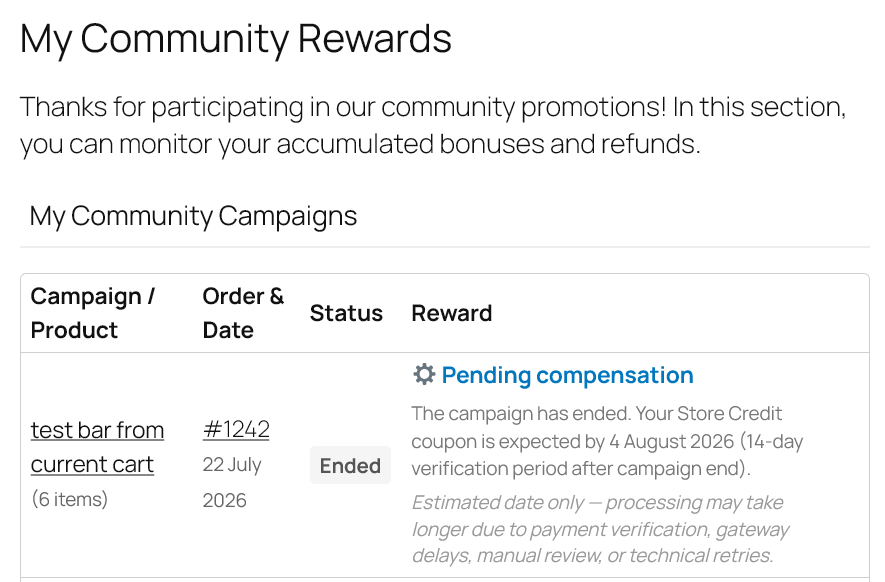
Before you configure: PRO uses Mode A — the live product price follows eligible community sales; the cart only projects what quantity would unlock. See Chapter 1.
Compensation claim: Store Credit or payment-gateway partial refunds where supported. Always run Test Gateway Readiness before relying on gateway refunds. Brand names below are examples of gateway families — not a public guarantee list.
Global settings are found in WooCommerce > Community Pricing PRO > Settings tab and influence all plugin behavior. Configure them in the order shown — each section depends on the previous ones.
2.1 Eligible Order Statuses
Select which WooCommerce order statuses contribute to the promotion counter. This is the first setting to configure: without correctly counted orders, the plugin does not work. The counter tracks units sold (quantities), not order count. Default on new installs: Processing, Completed, and On-hold.

2.2 Update Old Orders Pricing
Setting Update unpaid order prices? (default: yes). When the community hits a new threshold:
- Unpaid orders (e.g. Pending): line totals are updated to the current community price.
- Already paid orders: totals do not change mid-campaign. On first payment the plugin stores the paid unit price; at campaign end it issues Store Credit or a Gateway Refund for the difference.
📍 Customer area: how these two flows (unpaid vs paid) appear in My Account → My Rewards is explained in the FAQ §9.11. Pricing model (Mode A) and counter semantics: Chapter 1 §1.1.
2.3 Compensation Method
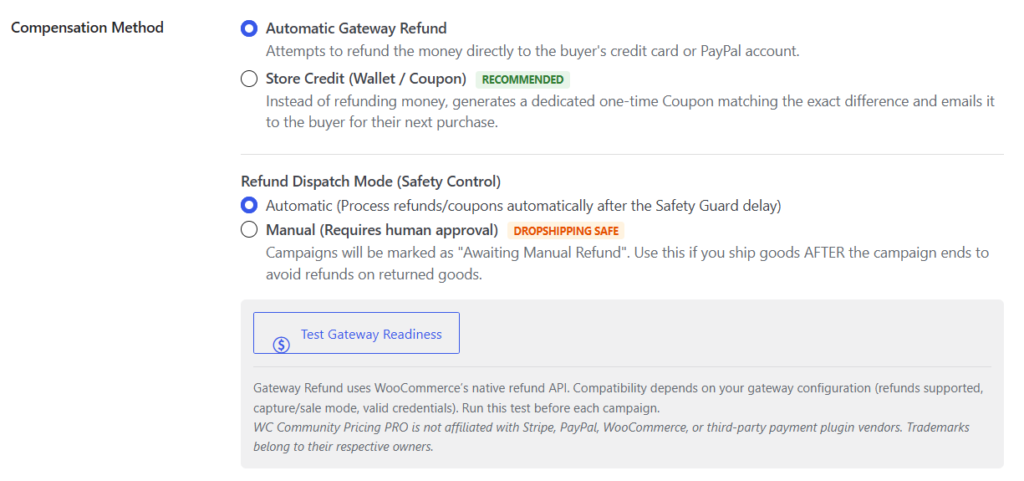
Choose how to return savings to customers when the campaign closes:
- Store Credit (Wallet / Coupon) — DEFAULT & RECOMMENDED: System generates a personalized discount coupon sent via email. Works with any payment gateway and is the default configuration on new installations.
- Automatic Gateway Refund: System attempts to credit money directly back to the customer’s payment method (Stripe, PayPal, etc.).
Community Pricing PRO is not affiliated with, endorsed by, or sponsored by Stripe, PayPal, WooCommerce, or third-party payment plugin vendors. Product and company names are trademarks of their respective owners.
In Gateway Refund mode, refunds are processed through WooCommerce’s native refund API. Compatibility depends on your store configuration and the payment gateway in use. Always run Test Gateway Readiness in plugin settings before launching a campaign.
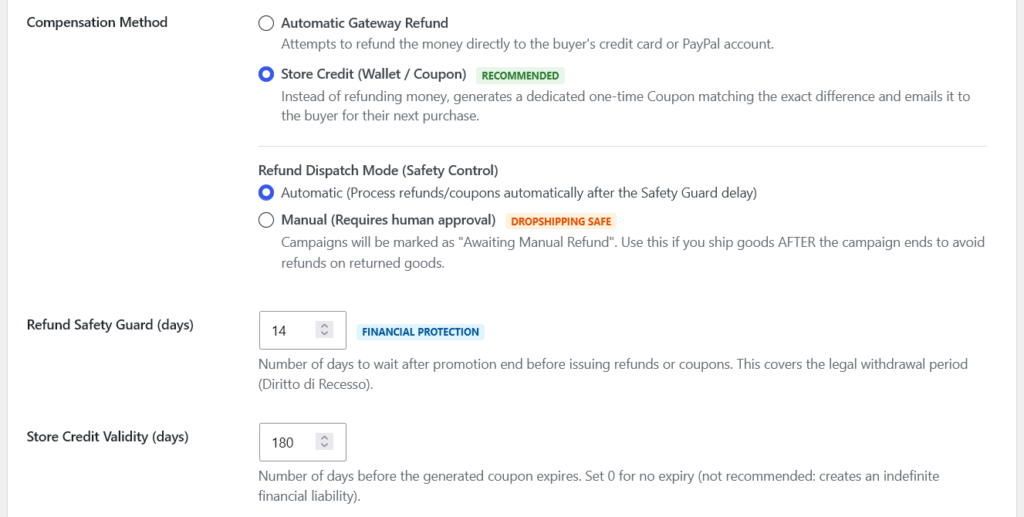
If you select Store Credit, the Store Credit Validity (days) field appears — set the coupon expiry in days (default: 180 days). Setting 0 = no expiry (not recommended: creates an indefinite financial liability). With Gateway Refund, run the readiness test in §2.4 before each campaign. Full QA walkthrough: Chapter 7.
2.4 Refund Dispatch Mode (Safety Control)
Controls when refunds are actually issued after campaign closure. Found in the same section as Compensation Method:
- Automatic (default): refunds/coupons issued automatically after the Safety Guard period.
- Manual — requires human approval DROPSHIPPING SAFE: refunds are frozen. The shop manager releases them from Promotion Hub → Manual Dispatch with Start Compensations after verifying delivery. Use this if you physically ship goods (Right of Withdrawal runs from delivery, not payment).
Before launching a campaign with Gateway Refund, select this compensation method and click Test Gateway Readiness. The tool checks whether your enabled Stripe and PayPal gateways support automated partial refunds and immediate capture. Results may vary by store setup—always verify in your own environment.
Technical requirements (Gateway Refund): refunds API enabled, capture/sale payment mode (not authorize-only), valid credentials. Refunds use the same gateway as the original order payment.
Test success criteria: at least one enabled Stripe-family and one PayPal-family gateway report ready (when both families are in use). Example OK message: ✅ STRIPE_CC: Capture mode, refunds supported, credentials OK.
Results appear immediately below the button. Run this test before each campaign.
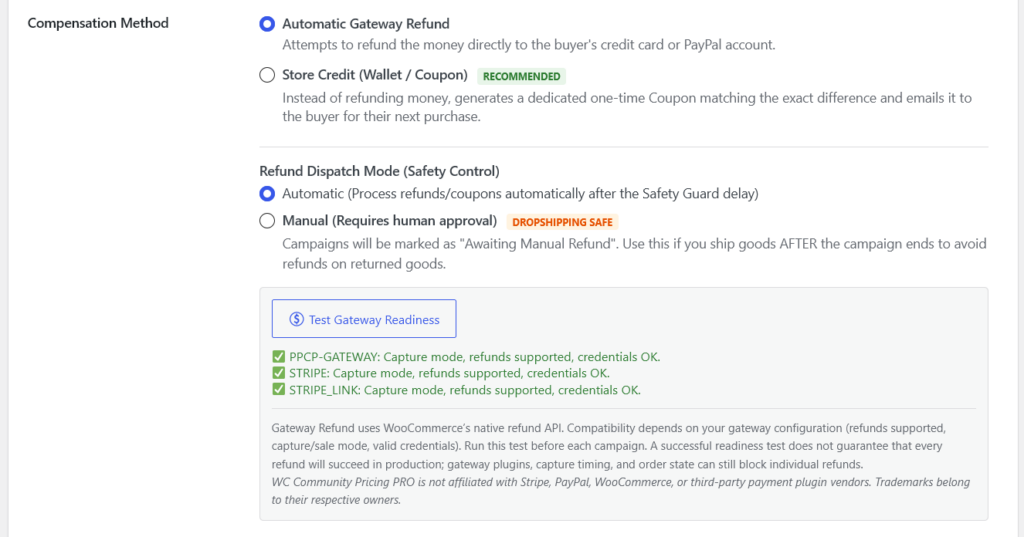
This Safety Control lives inside the Compensation Method block. The global default for products set to “Inherit” is configured separately in §2.8.
2.5 Refund Safety Guard (days)
Number of days to wait after promotion end before issuing refunds or coupons. Covers the legal withdrawal period (Right of Withdrawal). Default: 14 days. Set to 0 to remove the delay (not recommended for physical goods B2C sales).
In the Settings tab this field appears immediately after the Compensation Method block (same scroll area as Store Credit Validity and Force refund-compatible gateways).
2.6 Force Refund-Compatible Gateways
Appears after Refund Safety Guard and Store Credit Validity (days) in the Settings tab. Two related behaviours matter:
- Gateway Refund compensation mode (engine — always on): when the cart contains a community-promotion product, checkout already hides payment methods that do not declare WooCommerce
supports('refunds')(e.g. typical Bank Transfer / COD). This is not controlled by the Force checkbox. - Force refund-compatible gateways? (Settings checkbox): an additional filter in the same family. With Store Credit selected, the Settings UI automatically unchecks and disables this option (JS) because coupons work with any gateway. With Gateway Refund, the engine filter above already applies when a promo is in the cart — leaving Force unchecked does not re-enable non-refundable methods for those carts.
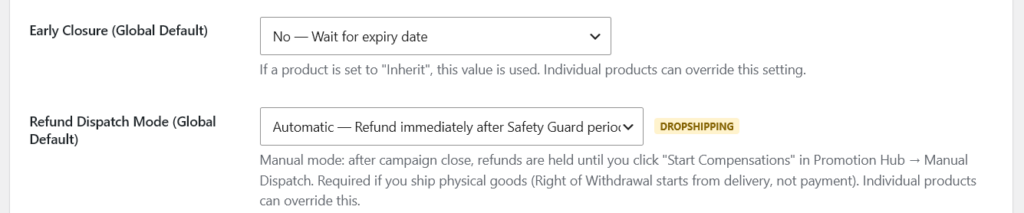
2.7 Early Closure (Global Default)
Sets the default behaviour for all campaigns:
- No — Wait for expiry date (default): campaign stays open until the configured end date.
- Yes — Close immediately when max target is reached: campaign closes as soon as sales hit the last tier cap.
Products set to “Inherit” use this value. Products with explicit settings override it. On early closure: end date is updated, scheduled events are cancelled, and the refund engine starts immediately.
2.7.1 Early Closure vs End Without Compensation
These are not synonyms:
- Early Closure — close when the max target is reached (or equivalent auto path) and continue the compensation flow for eligible paid shoppers.
- End Without Compensation — admin closes the campaign with no rewards (
no_rewardpath). Use only when you intentionally stop equalization; customers should see an honest outcome message (My Rewards / order / result email).
Product-level early close and campaign lock: Chapter 3. Outcome messaging: What’s New in 2.8 · FAQ Chapter 9 (EWC / Manual Dispatch).
2.8 Refund Dispatch Mode (Global Default)
Sets the default refund dispatch mode for all campaigns (inherited by products set to “Inherit”):
- Automatic — Refund immediately after Safety Guard period
- Manual (Dropshipping Safe) — Hold until shop manager releases DROPSHIPPING
Each individual product can override this setting. This global default applies to products set to “Inherit”; the active Safety Control in §2.4 is configured inside the Compensation Method block.
2.9 Return Policy Notice — Frontend Product Page (v2.5+)
This section allows you to display an informative notice on the product page when a community promotion is active. Introduced in v2.5.0 — see also What’s New in version 2.5.
2.9.1 Enable Return Policy Notice
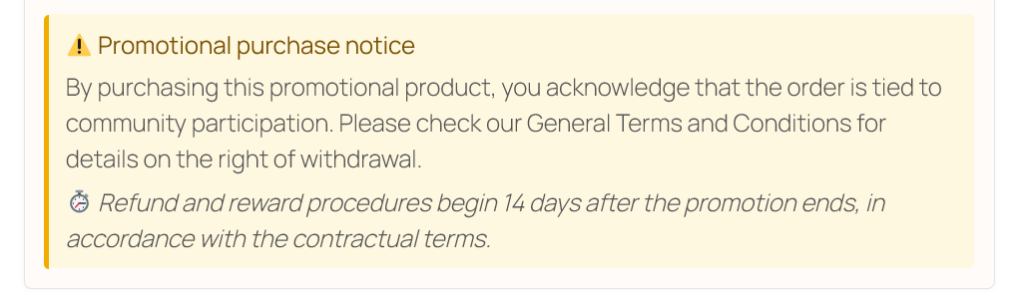
When enabled, shows an informative box on the product page for all products with an active promotion.
2.9.2 Notice Text (Customizable)
The text displayed on the product page. Freely editable. Shown only when the product has an active promotion. Default text:
“By purchasing this promotional product, you acknowledge that the order is tied to community participation. Please check our General Terms and Conditions for details on the right of withdrawal.”
2.10 Legal Pages & Notice Options (v2.5+)
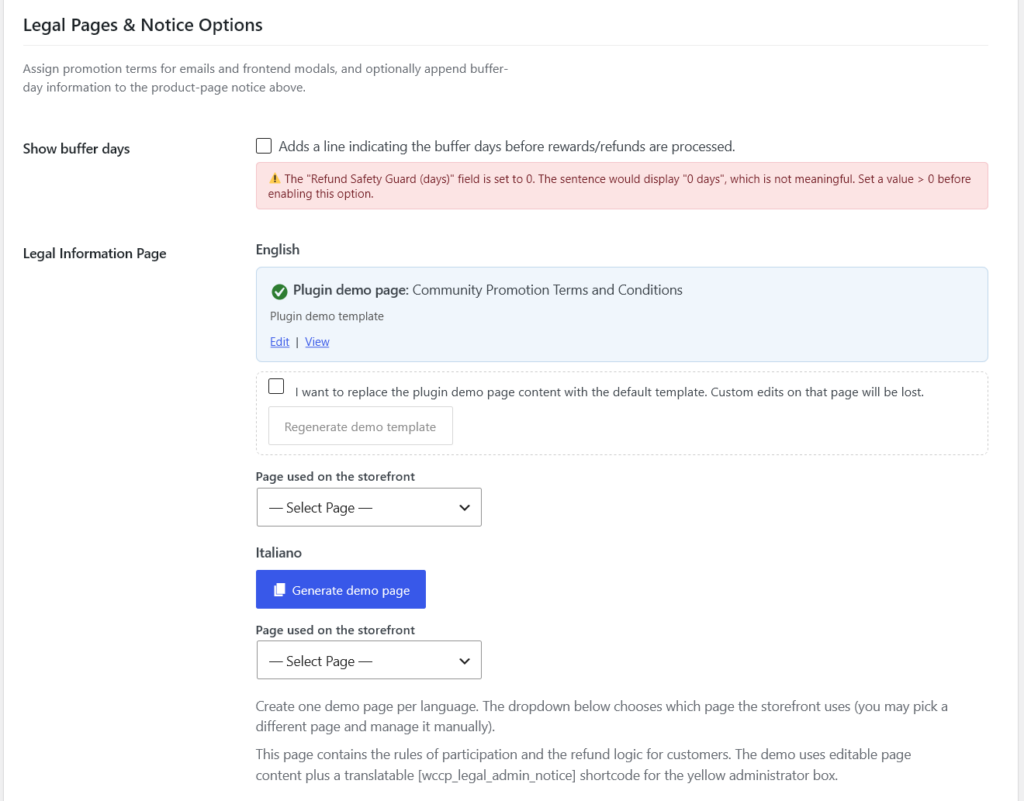
2.10.1 Show Buffer Days
Automatically appends a sentence to the notice indicating how many Safety Guard days pass before refunds/rewards are processed. Preview example:
“⏱️ Refund procedures and reward dispatch are initiated X days after the promotion ends, in compliance with contractual terms.”
2.10.2 Legal Information Page
Updated in v2.6.3 — plugin demo page and storefront assignment are separate.
The plugin distinguishes:
- Plugin demo page — created with Generate demo page (one per language with Polylang). A status panel shows the title with Edit/View links. Only this page can be regenerated.
- Page used on the storefront — chosen from Page used on the storefront. Linked in emails and frontend boxes. You may select a different WordPress page and manage it manually; the original demo stays unchanged and the plugin shows a notice.
1. No demo yet → Generate demo page
2. Demo exists → Generate button hidden; edit in WordPress or use Regenerate demo template (requires confirmation checkbox)
3. Custom shop page → change only the dropdown and save settings
4. Demo deleted from Trash → Generate demo page appears again
The yellow administrator box uses the [wccp_legal_admin_notice] shortcode (translatable at render time, not frozen in the database).
2.11 Features Linked to Global Settings
2.11.1 Smart Admin Notice
If there are campaigns awaiting manual dispatch (Manual mode active), a notice automatically appears on all admin pages (visible to Shop Managers and Administrators only):
- 🟠 Orange — campaigns pending within the tolerance window.
- 🔴 Red — overdue campaigns requiring immediate action.
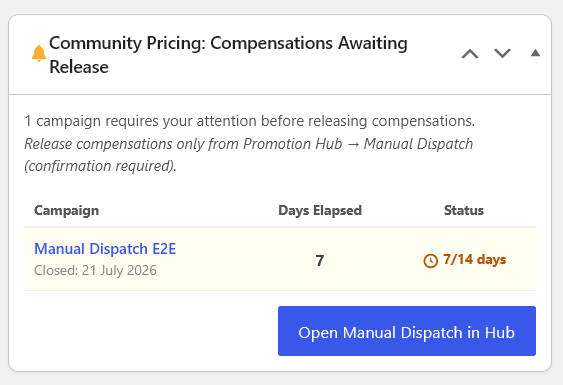
2.11.2 Dashboard Widget (WP Admin Home)
A widget on the WordPress Admin Dashboard Home lists campaigns awaiting manual dispatch (status overview only). Release compensations from Promotion Hub → Manual Dispatch using Start Compensations (confirmation required) — the dashboard widget does not dispatch via AJAX.
2.11.3 Activity Log (Global Log)
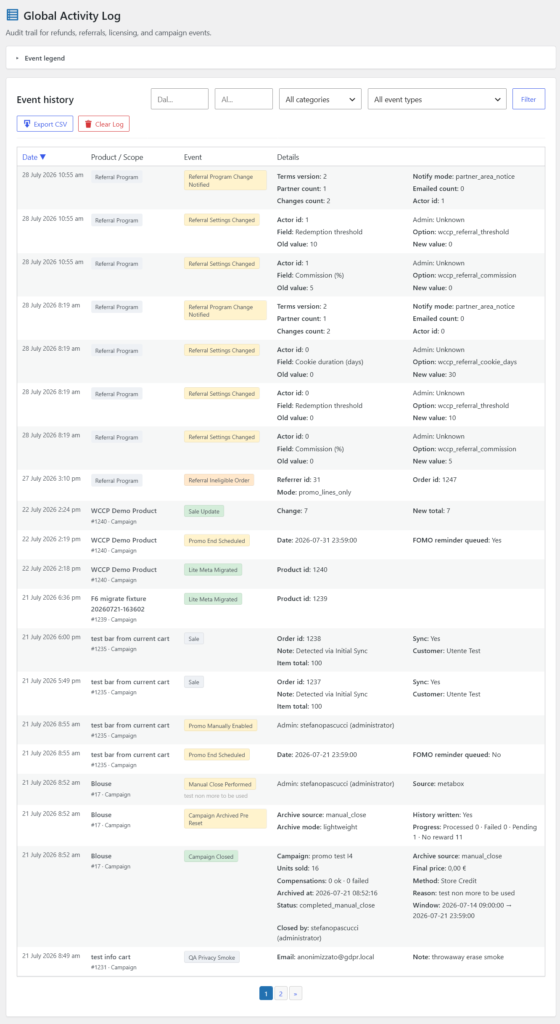
Accessible from the Global Log tab in settings, it shows every detected sale, every refund issued, and any gateway errors. Supports date and product filters, with CSV export. From 2.9+: readable Details, collapsible event legend, and tooltips — see What’s New in 2.9 and Chapter 7 §7.4.
2.12 Store timezone and Settings warning (v2.8+)
Promotion Start and End dates (product Community Pricing tab) are interpreted in the WordPress site timezone — Settings → General → Timezone — not UTC and not the admin browser timezone.
- Set the correct timezone before scheduling campaigns (e.g.
Europe/Romefor Italy). - If the site stays on UTC or unset, a promo “from 10:00” may still show as Coming Soon on the storefront or close at unexpected times.
- From v2.8.0, WooCommerce → Community Pricing → Settings → Global Rules shows a warning when the timezone is UTC/unset on a site that does not look like staging — with a quick link to WordPress General Settings.

2.13 My Rewards — estimated compensation date (v2.8+)
For already paid orders after campaign closure, the customer My Rewards area shows Pending compensation with:
- Expected reward type — Store Credit coupon or card refund (global Compensation Method).
- Estimated date — Action Scheduler jobs (refund batch or promo closure) → campaign end + Refund Safety Guard (days) (§2.3); with guard = 0 and no queued job: within a few hours after closure.
- Delay disclaimer — date is indicative (checks, gateway, manual review).
- Manual Dispatch — no automatic payout date shown.
Customer status details: FAQ §9.11. Implementation: WCCP_Reward_Status::get_compensation_eta().