
Each product in your catalog can host an independent campaign. Configuration takes place within the product edit page in WooCommerce.
3.1 Control Panel
Locate the Community Pricing box. This is the operational core of the single promotion.
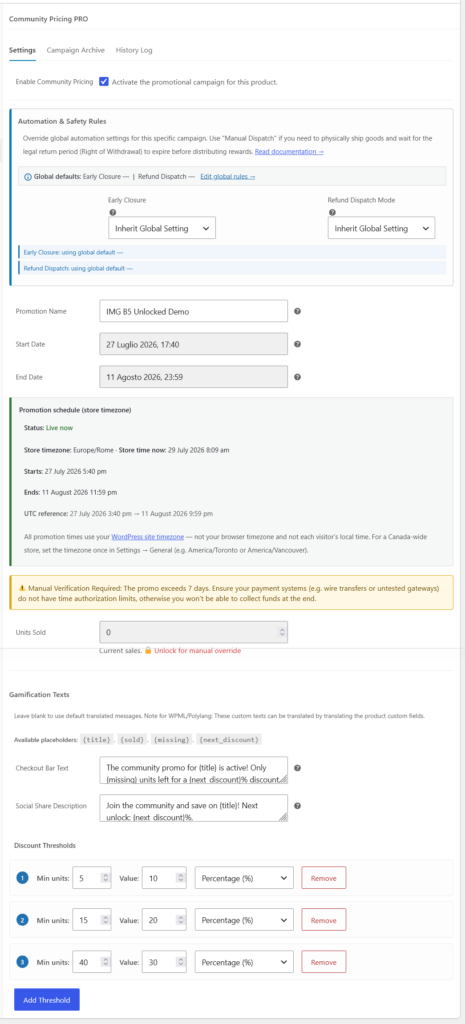
The first step is to check the Enable Community Pricing box. Once enabled, you can enter a Promotion Name (e.g., “2024 Launch”) to help you identify the campaign in system logs.
3.2 Time Window (Dates)
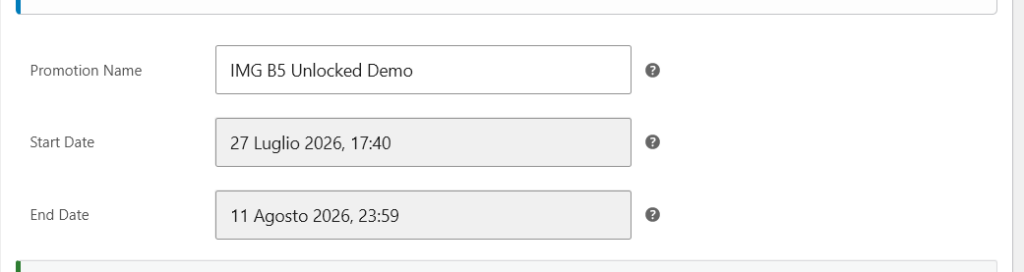
The system uses dates to automate the entire discount lifecycle:
- Start Date: When the product begins showing the progress bar and dynamic prices.
- End Date: The crucial moment when the campaign closes. At this exact time, the system “freezes” the final price and starts refund procedures. Timing after close (Safety Guard delay, Automatic vs Manual Dispatch) follows Chapter 2.
3.3 Defining Discount Thresholds
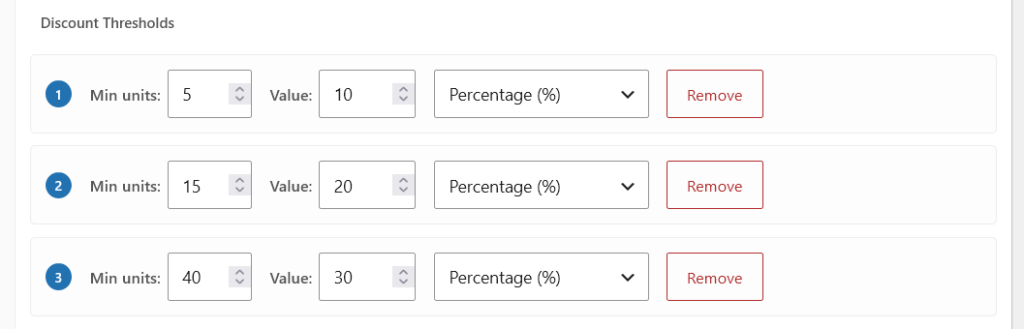
Thresholds are the community goals. By clicking Add Threshold, you can define savings levels:
- Quantity: Number of pieces sold to unlock the discount.
- Discount/Value: Amount of savings.
- Type: Choose between Percentage (e.g., 15% off), Fixed Discount (e.g., $5 off), or Fixed Price (e.g., product will cost $30).
3.4 Gamification Messages
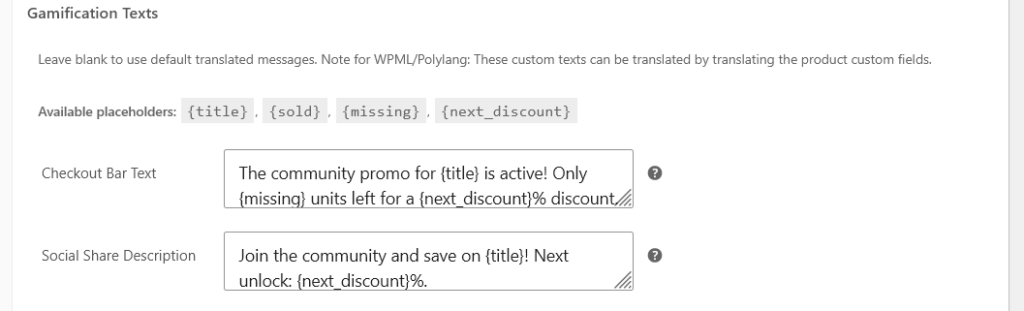
To encourage users, you can customize messages in the cart and on social shares. Using placeholders like {missing} or {next_discount}, the system will automatically insert real numbers for the customer.
3.5 Regular price and WooCommerce Sale price (v2.7+)
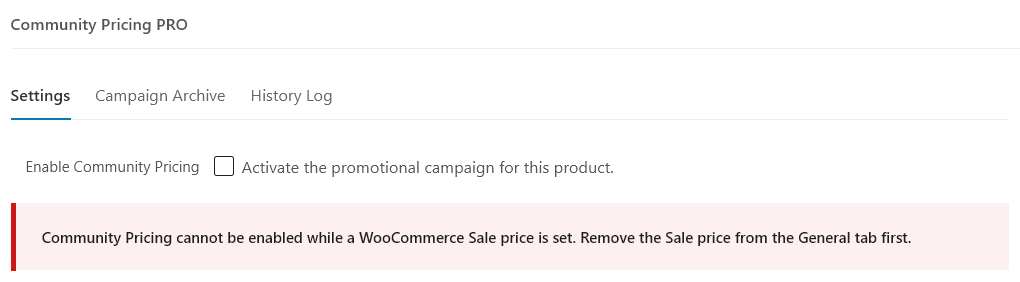
Do not set a Sale price on the WooCommerce General tab when using Community Pricing on the same product.
- The community promotion is the product discount: tiers, progress bar, and final refund are computed from the regular price.
- If you also set a WC Sale price, customers may pay less than the final community price and orders can end up as no reward (no refund) even when the tier was reached.
- From v2.7.0 the plugin blocks activation while a Sale price exists. Remove it on the General tab, save, then enable Community Pricing.
3.6 Promotion calendar and schedule preview (v2.8+)
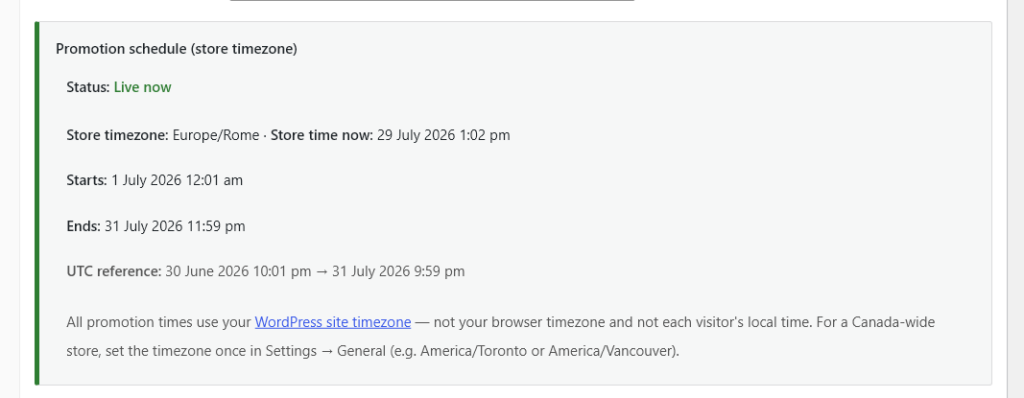
In the product Community Pricing tab, below the date fields, you will find the Promotion schedule (store timezone) panel.
- Shows live status: Scheduled (not started yet), Live now, or Ended.
- Lists start/end in the store timezone plus a UTC reference for debugging or distributed teams.
- Updates in real time as you edit the date fields (AJAX preview without saving).
- Date fields show the Site timezone: … hint next to Start/End.
3.7 Campaign lock & starting a new campaign (2.9+)
When a campaign already has eligible sales, or refund processing is underway, configuration can be locked (dates/thresholds/early-closure/dispatch mode). The product Community tab shows a lock notice.
- You cannot silently rewrite a live campaign’s rules mid-flight.
- On eligible final states, changing dates can trigger a new campaign path (archive + runtime reset) — the UI and save handler enforce this safety-net.
- Duplicating a WooCommerce product does not copy live campaign runtime state.
Dispatch and Safety Guard after close: Chapter 2. See also What’s New in 2.9.
3.8 Unsaved changes guard (2.9.16+)
If you change the master toggle, dates, or thresholds and leave without Update/Publish, the Community tab warns you (banner + browser beforeunload). Confirm dialogs alone do not save — you must Update/Publish.